Restore Deleted OneDrive Files
Recover files from OneDrive Online
If you accidentally delete a file or folder in OneDrive, you may be able to recover it later from the OneDrive recycle bin:
1. Go to the OneDrive website and sign in with either your Microsoft account or your work or school account.
2. In the navigation pane, select Recycle bin.
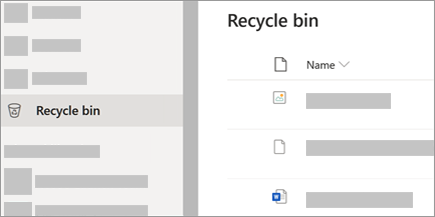
3. Select the files or folders you want to restore by pointing to each item and clicking the circle check box that appears, and then click Restore.

Note: If using OneDrive for Business, items in the recycle bin are automatically deleted after 93 days.
Recover files from Computer
Deleted online-only ( ) files will not appear in your computer's Recycle Bin or Trash.
) files will not appear in your computer's Recycle Bin or Trash.If you get an email or notification saying "[Folder name] was removed from your OneDrive" it means that a shared folder was deleted. You will not be able to restore or recover a folder shared with you. If you shared a folder with other people and they deleted its contents, you can find the contents in your recycle bin.
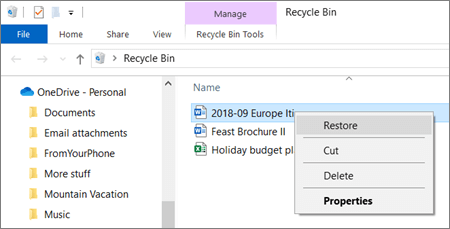
To restore files from your Recycle Bin in Windows, open the Recycle Bin, select the files or folders you want to recover, then right-click them and select Restore. The file or folder will be restored to its original folder.
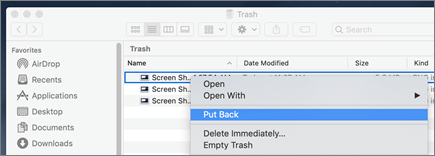
To restore files from your Trash on a Mac, open the Trash, select the files or folders you want to recover, then right-click them and select Put back. The file or folder will be restored to its original folder.
Related Articles
ADVISOR - My Files Reports Available
There are three routinely generated reports posted for you in the Advisor Portal in My Files: Forecast Billing Revenue & Expense Statement Final Billing Report Forecast Billing - one per associated rep code This report is generated ...ADVISOR - Revenue & Expense Statements: Navigating to My Files
Advisor Revenue and Expense statements are no longer available in Nexus. To view your new Revenue and Expense statements, please go to the Mutual Power Portal. Below are two routes to get there: Via the Power Portal Click on My Files from the banner. ...2Q2026 Billing and Advisor Compensation and Reporting Timeline
Attached is the Billing and Advisor Compensation Timeline for advisors on quarterly fee billing schedules. This timeline details the events will take place: Investor Client Forecasting Reports publishing dates Revenue and Expense Statement publishing ...3Q2026 Billing and Advisor Compensation and Reporting Timeline
Attached is the Billing and Advisor Compensation Timeline for advisors on a quarterly fee billing schedule. This timeline details events that will take place throughout the quarter: Investor Client Forecasting Report publishing dates Revenue and ...Mutual Securities, Inc. Written Supervisory Manual
Mutual Securities, Inc. WSP Manual